Overview
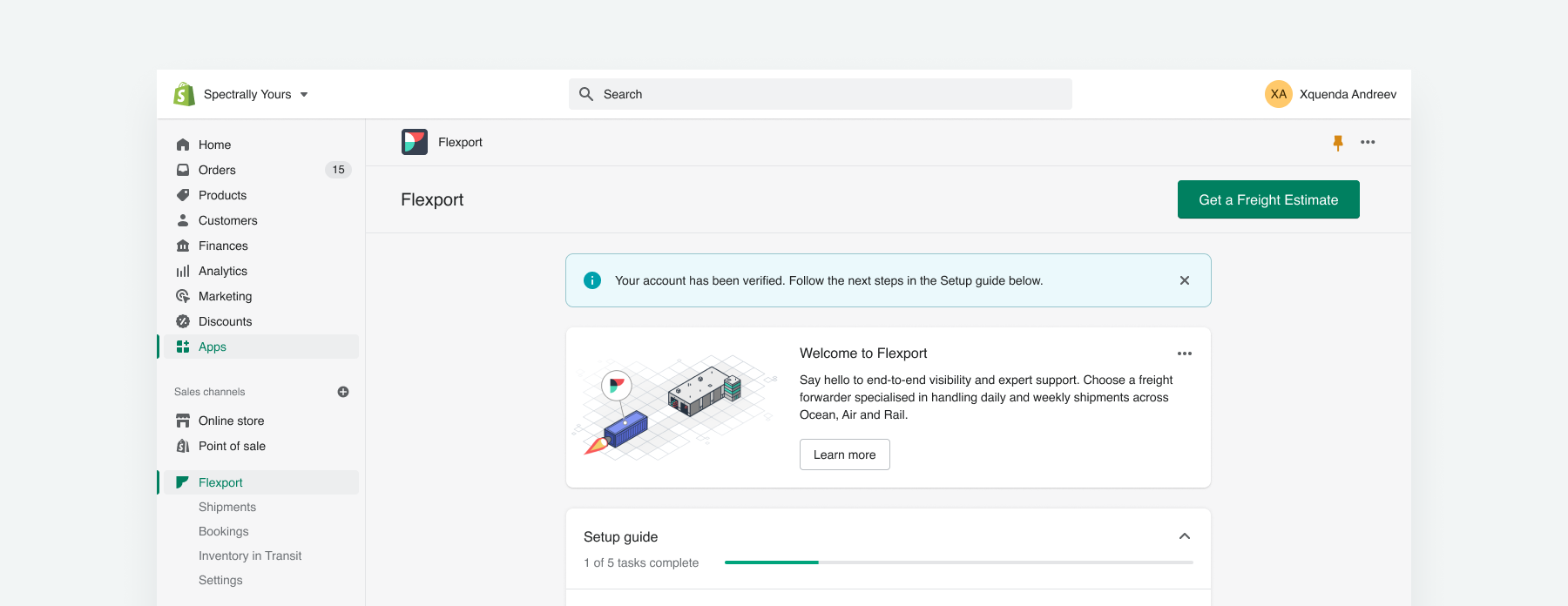
I led the design for Flexport's integration with Shopify, aimed at expanding our customer base by reaching small businesses and individual users. This integration will allow Shopify users to utilize Flexport's services for booking and shipment tracking.
Challenge
Streamlining Third Party Integration at Flexport
The current process of allowing a third-party platform or app to access Flexport client data and APIs is time-consuming and complicated. On average, it takes 8 minutes per client to retrieve and input credentials, and most clients require assistance to navigate the process. It is also not scalable as API client credentials are immutable and need to be re-generated again to access new additional APIs. The number of clientId/ClientSecret need to maintain will be number of applications * number of Flexport customers. There are about 5,000 Shopify merchants that align with Flexport Enterprise account structure and 42,000 SMB clients. Assuming we would onboard half of these merchants, authorization workflow will help save 1958 hours or 81 days for just Shopify integration.
High Level Goals

Expedite account
creation process
On average, the account creation process takes 8 minutes. To streamline the process, certain steps should be automated.

Provide clarity
Each step must be distinct and have some kind of visual signal to direct visitors to the following ones.

User-friendly vocabulary
Avoid using technical terms that may hinder users from creating an account or make it difficult for them to use Flexport's services.
Ideation
Design Exploration
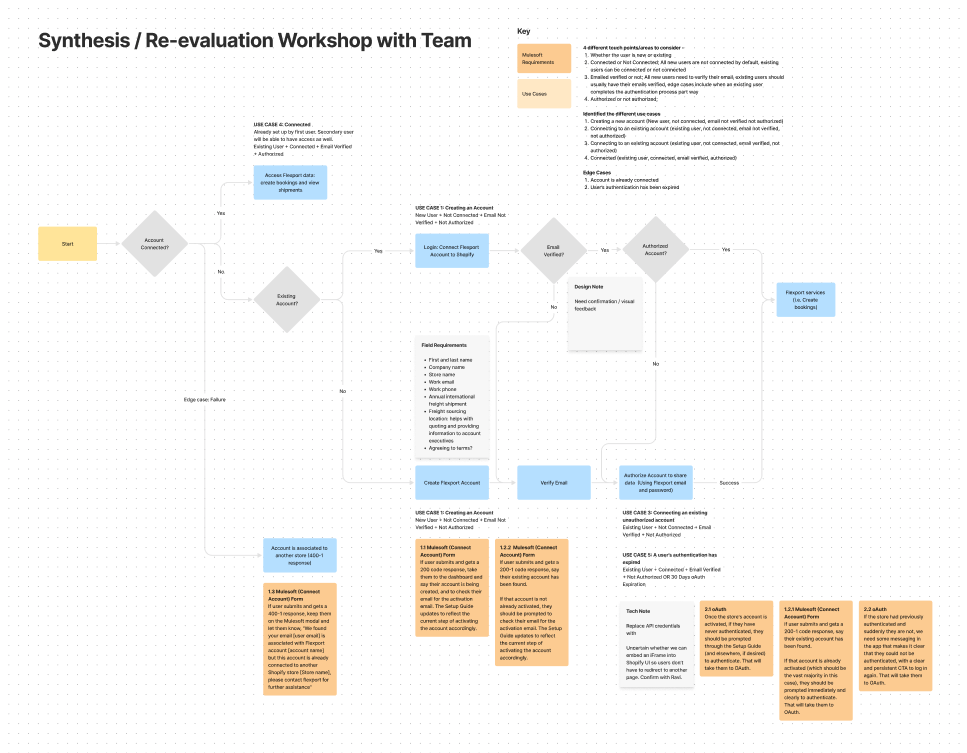
I had brainstorming sessions with Codal, IAM, and Public API teams to collaborate on identifying touchpoint, user pain points, product requirements, technical limitations, and potential edge cases, to prioritize what we are able to address first.
Potential Areas of Improvement
Easy dev implementation + Medium impact
UX Writing
Impactful UX writing to guide users seamlessly through the process
Visual Cues
There are two user types: Existing or new user
Medium dev implementation + High Impact
Automate API
Implementing automated API credentialing can decrease the dependence on support. This feature can be easily executed since it has already been integrated into the Flexport product.
Difficult dev implementation + high impact
Differentiate the Login + Create Experience
Make create and login experience distinct to avoid confusion. However, this may prove challenging due to limited development cycles available.
Authorization on Shopify
Authorization can be achieved entirely on Shopify, it is probable that, for the time being, users will need to be redirected to the Flexport page to authorize their accounts.
Two Potential Approaches
There are two potential approaches that we can employ to convey the status of account creation/connection to users, namely, utilizing the setup guide and system status.
Setup Guide
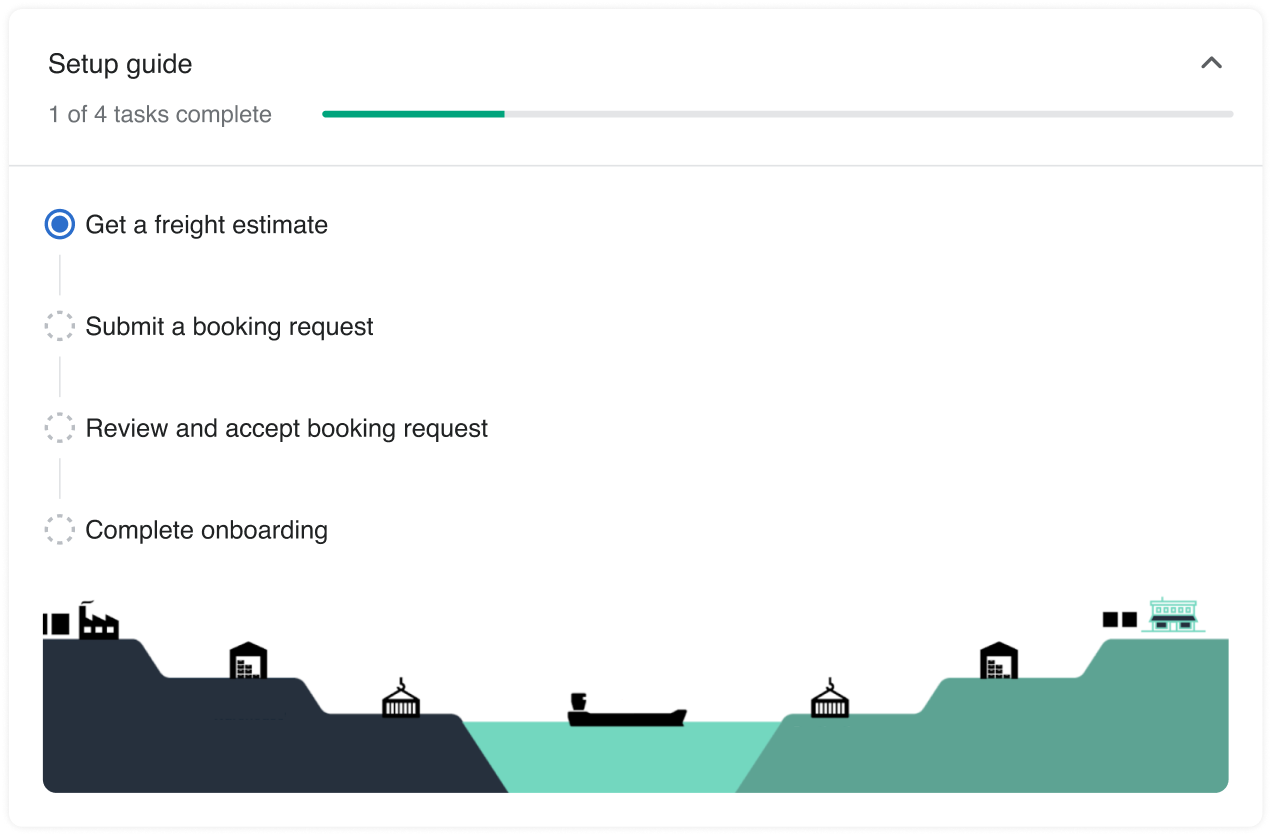
The purpose of the setup guide is to assist users in obtaining a freight estimate and requesting a shipment booking. Integrating the Flexport account connection as part of the step-by-step setup process results in a smoother and more integrated experience.
System Status
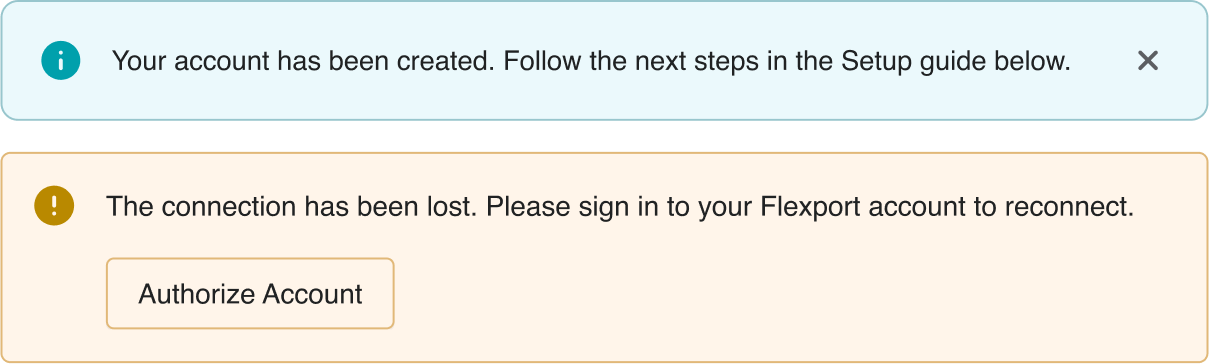
The system status notification is effective in grabbing users' attention, although it may seem abrupt and disconnected from the rest of the experience. However, it serves its purpose by emphasizing the need for immediate action.
Testing
Usability Tests
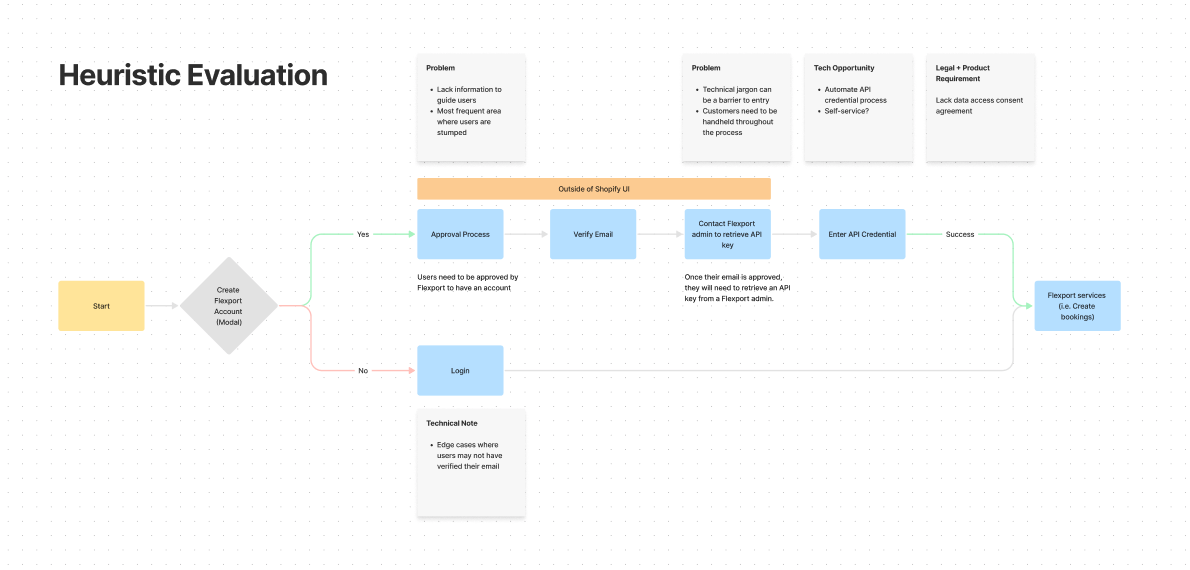
To kickstart the design process, I evaluated the current experience and gathered feedback from our beta/early customers on their experience with our product integration. I observed that they found the process tedious and confusing, creating barriers to entry and the need for additional support from customer solutions.
Prior to the existing experience, prospective customers had to request a quote and directly contact Flexport’s client solutions team to be set up with an account. In the MVP, we wanted to test self service account creation to our first set of Shopify users. We were able to identify some issues in the experience after conducting a heuristic evaluation and talking to users.
Option 1: System Status
The design includes an empty state that guides users to create or connect their account. Additionally, the system status is used to inform users of the current status and suggest appropriate actions.

Option 2: Setup Guide
We included the process of creating and connecting accounts in the setup guide and provided detailed instructions in the description. However, we received feedback that the information was overwhelming and hard to understand.

Research Findings
High Level Insights

Wording
Some instructions are convoluted and verbose, whereas other pieces of text lack context.

Unclear Actions
Actions are still unclear leading to confusion and slow account creation / connection.

Setup Guide Preference
The setup guide instructions were perceived as more seamless in comparison to the system status concept. However, users pointed out that the system status managed to grab their attention.

Login + Sign Up
Users questioned why the sign up and login experience share the same modal.
Actionable Items
Design changes to match user's expectations and needs

Connection
Differentiate the signup and login experience to avoid user confusion.

UX Writing
Work with technical writer to improve the UX writing for a better user experience.

Visual Cues + Feedback
Provide visual cues and feedback to keep users informed about their current step.
Iteraction
Sharing user feedback and iterating
We brought our findings and proposed solutions to a discussion with the developers to determine if the feature requests are feasible.
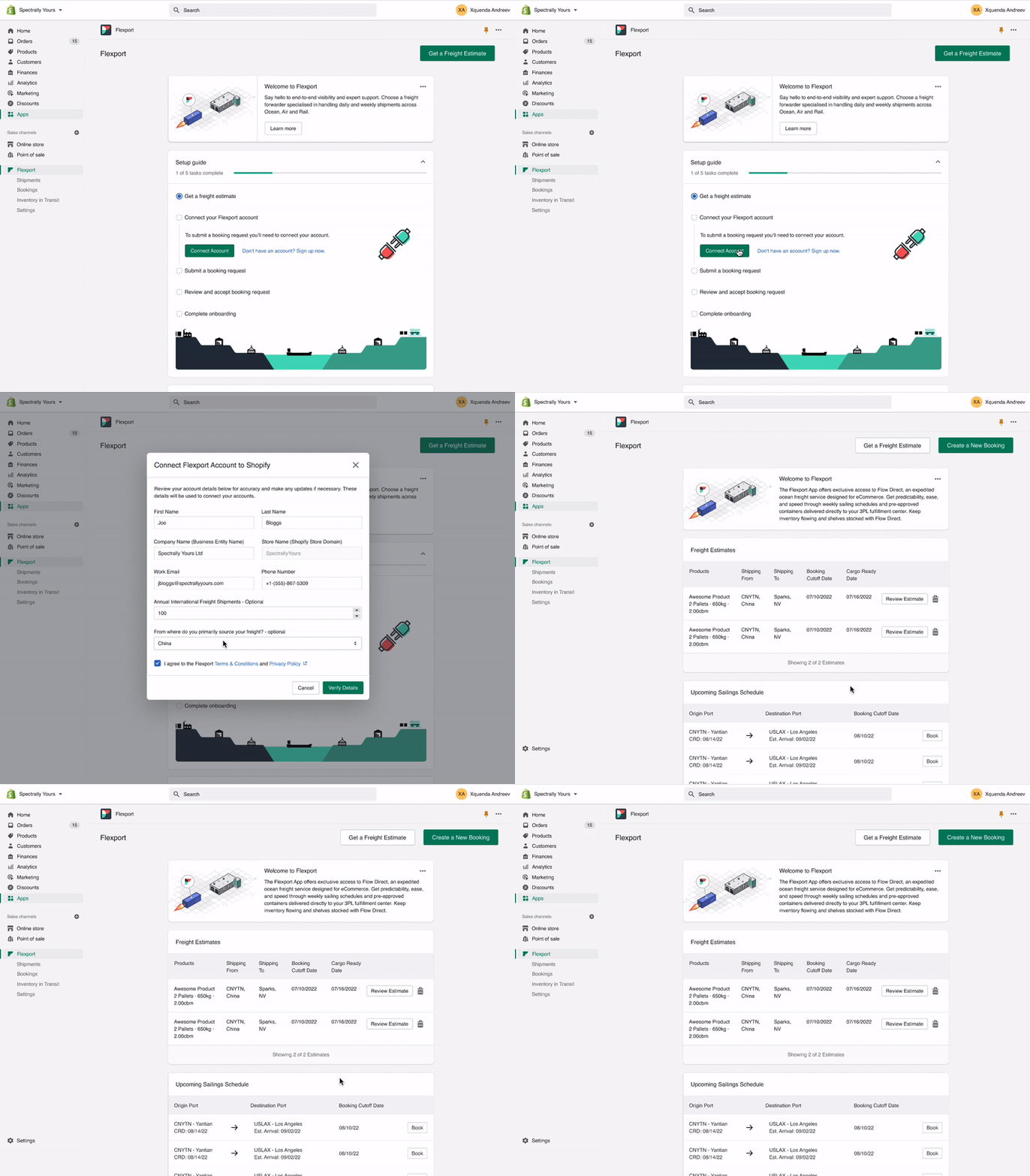
We wanted to separate the sign up and login flow as separate experiences but they weren’t certain if we were able to achieve it in the short time frame that we had. For now, the signup and login experience share the same modal. If a user has an existing account, we will map their first name, last name, and email to retrieve their account. However, we created concepts for both in case development has extra cycles to separate the experience.
Lastly, we are also unable to customize Flexport's authorization page due to the time constraint and impending release. The only action users can take is signing in to authorize access.
Final design
3rd Party Shopify Authorization
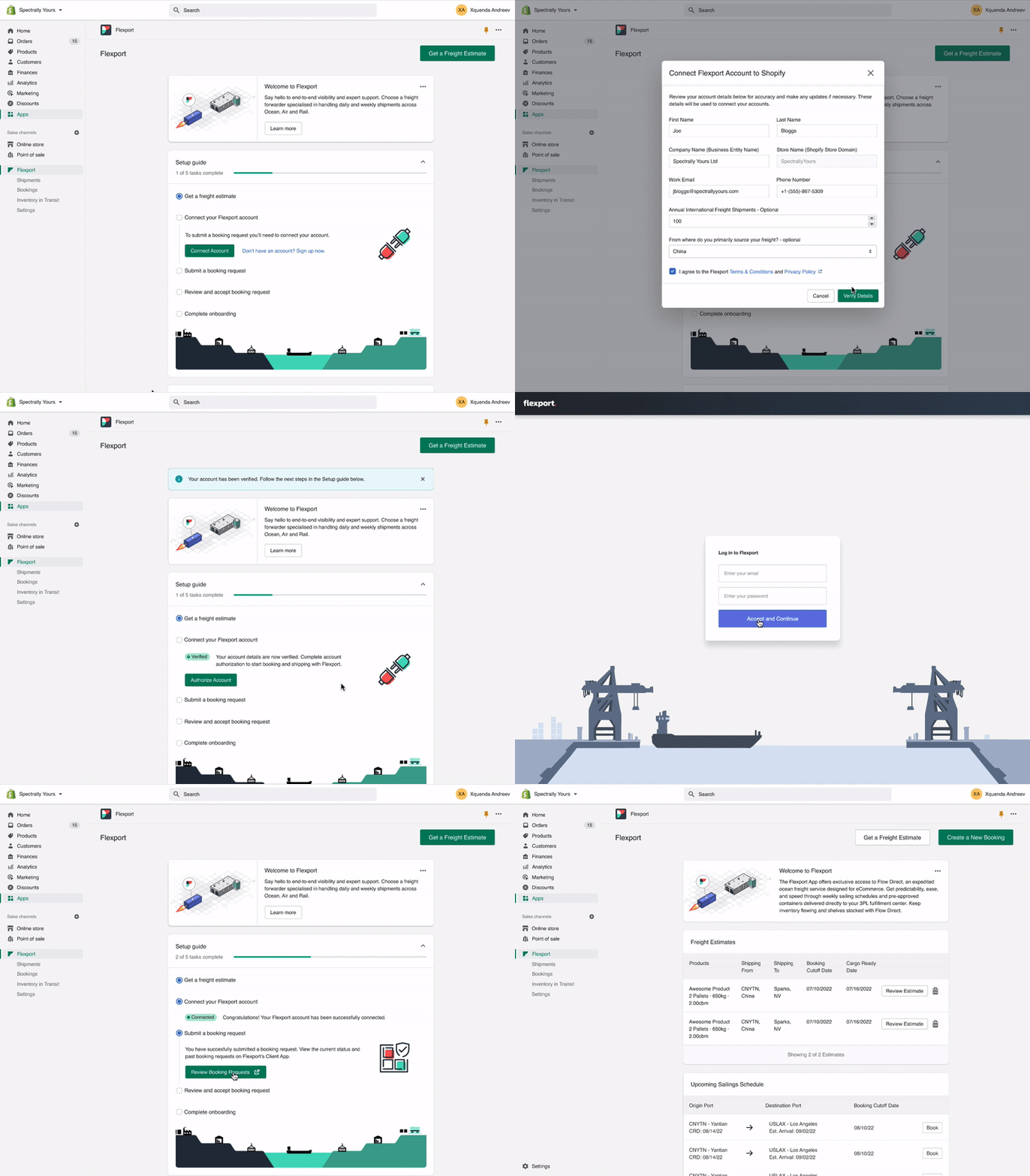
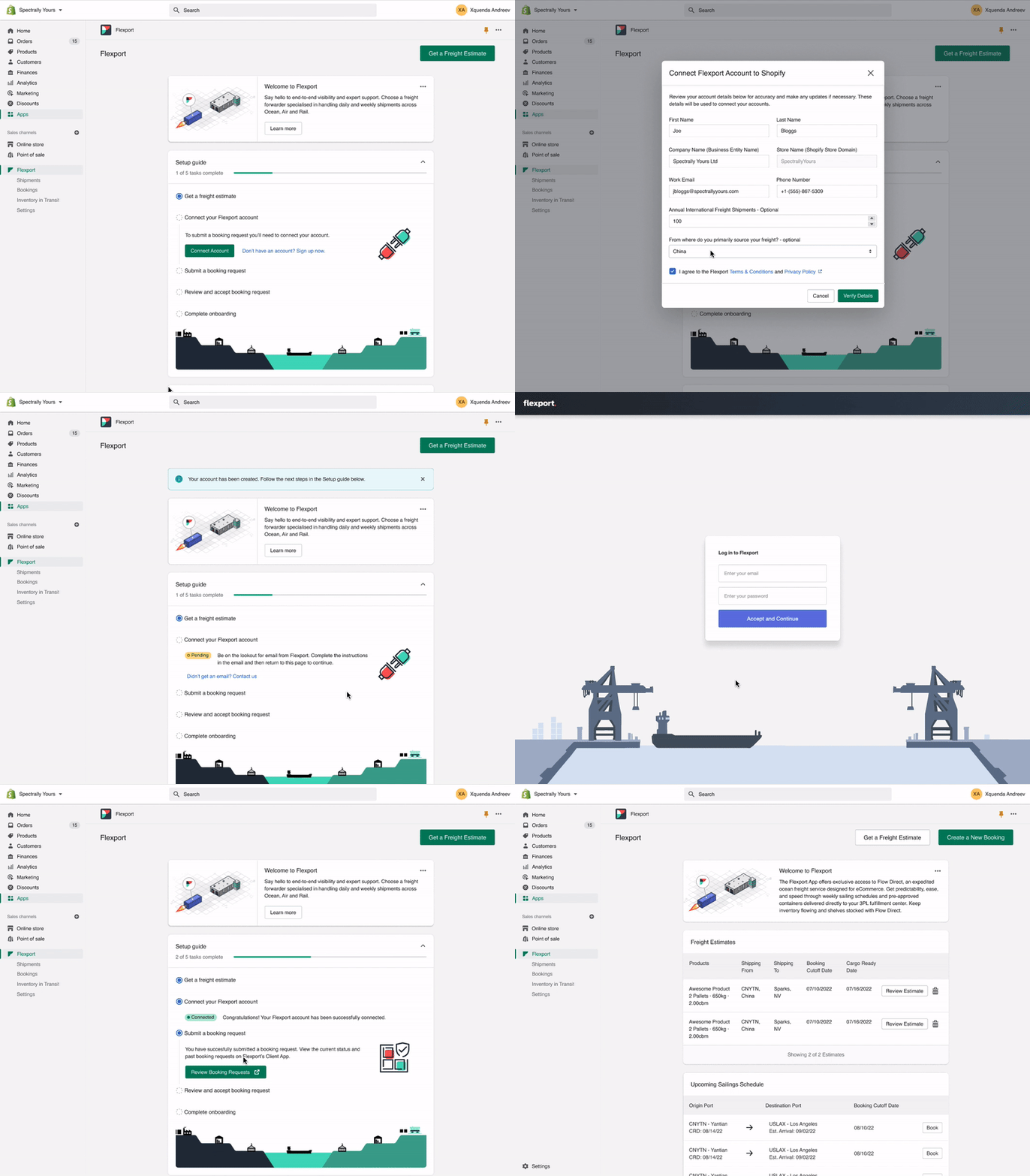
For the final design, we opted to embed the account creation and connection experience directly within the setup guide and include system statuses to highlight the ongoing user task. This decision was based on our understanding that users find it easier to follow instructions presented in a step-by-step format. Additionally, we made a design decision to include a system status feature, which effectively communicates and highlights important actions or statuses to users. By providing clear and concise messaging, users can more easily understand the current state of their account, and take the necessary actions to connect and authorize their account. Overall, these design decisions aim to provide users with a seamless and intuitive experience when connecting their Flexport account within the Shopify platform.
In use case 1, to create a new account, users will need to click on the "sign up" button and fill out a form. Once the account creation process is complete, they will be directed back to the setup guide. At this point, the system status will inform them that their account has been created successfully, and they will need to keep an eye out for an email from Flexport to verify their account. This email verification process is an important step to ensure the security and integrity of their account. Once the email verification process is complete, users will need to authorize their account to allow Shopify to access Flexport data and provide them with a seamless experience when booking and tracking shipments. This authorization process involves clicking on the "Authorize Account" button, which directs users to Flexport's authorization page. Once the authorization process is complete, users will be taken back to Shopify's app and informed that their account has been successfully connected to Flexport.
Use case 2
Existing user with an unverified email and is not authorized
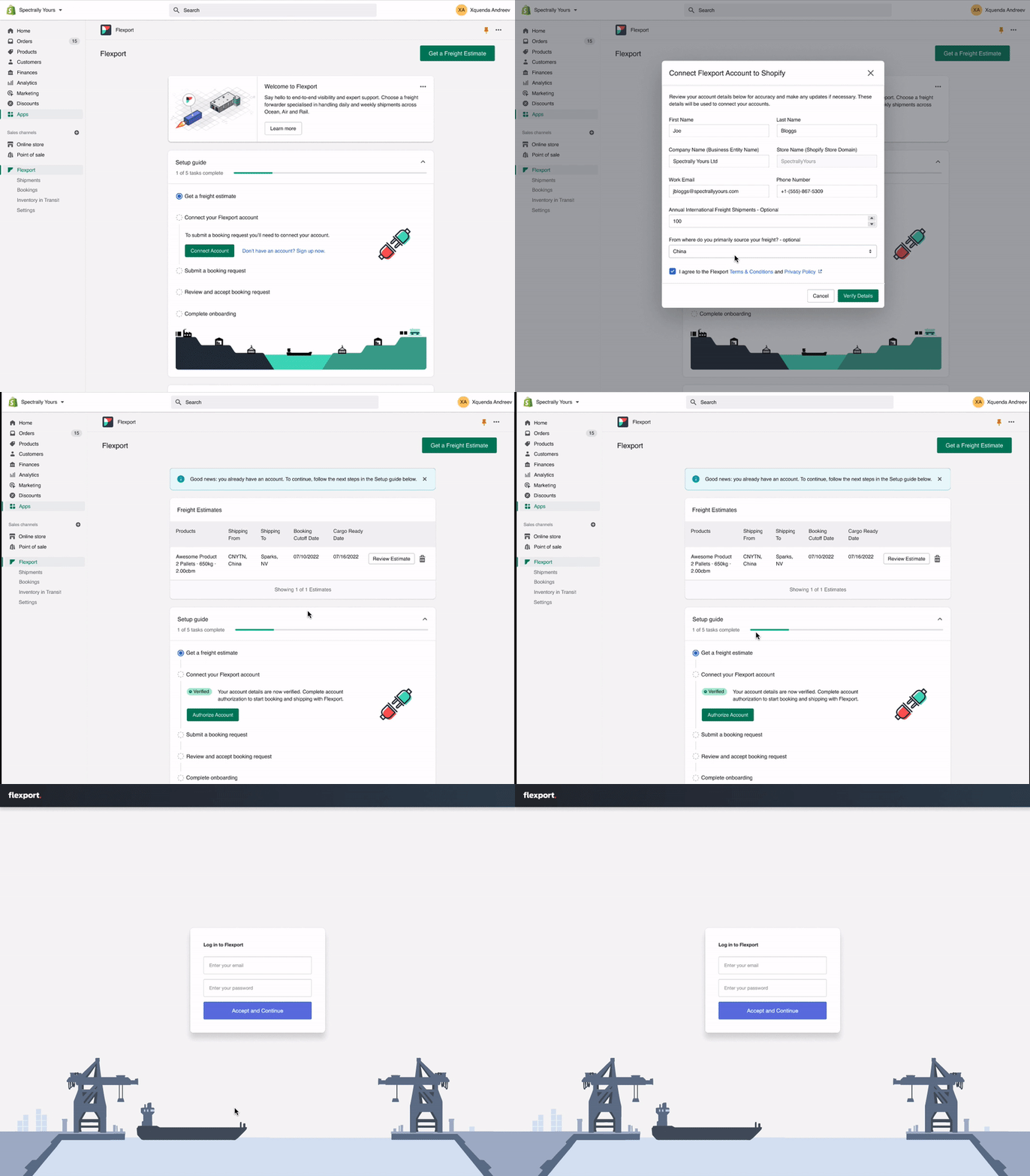
When a user who already has an account logs in, they will encounter the same login form as new users. But upon filling out the form, the system status will display a message indicating that their account already exists. If the user's email is not verified or their account is unauthorized, the setup guide will detect this and provide instructions on how to verify their email and authorize their account.
Use case 3
Existing user who is not authorized
If an existing user has already verified their email account, the system will jump them to the Authorize Account step.
If an existing user already verified their email and is authorized, they will be directly taken to utilize Flexport’s service.
Use case 5
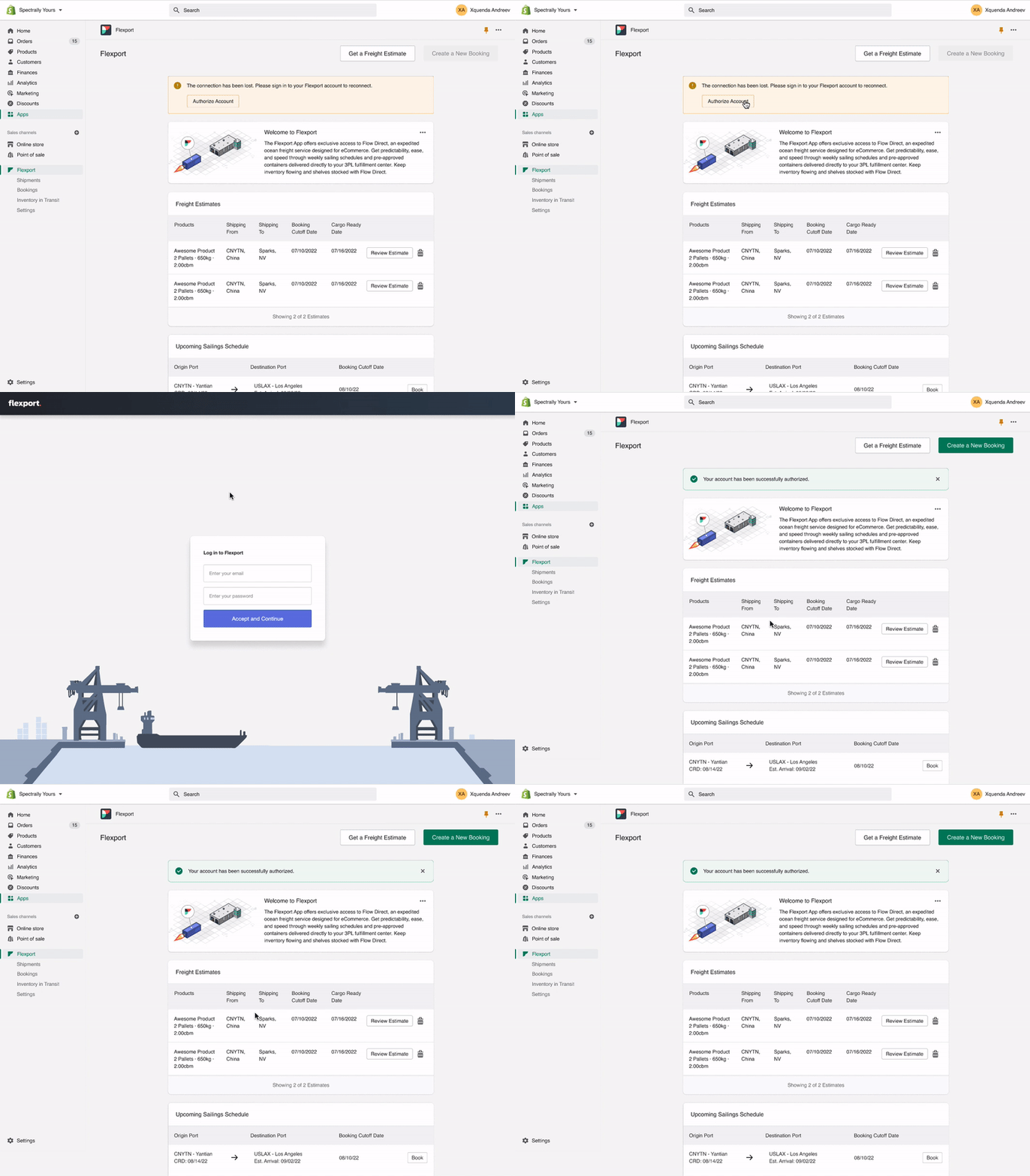
oAuth 30 day expiration
If a user's authorization for Flexport's services has expired, after a period of 30 days, they will be prompted to reauthorize their account. At this point, the system status will notify them that their connection has been lost, and all actions will be disabled until they reauthorize. While users will still be able to view freight estimates and sailing schedules, they will not be able to take any actions. For pages such as Shipments and Bookings, they will be empty until the user logs in again. Clicking on the "Authorize Account" button will take them to Flexport's authorization page, where they can log in and reauthorize their account. Once they have done so, they will be redirected back to Shopify, and the system status will confirm that their account has been successfully authorized.